WPWeb Social Network Integration Documentation
To create an X App, visit X Developer Console and sign in with your X account.
Create an X App
After signing in to the X Developer Console, go to Apps from the left sidebar and click Create App.
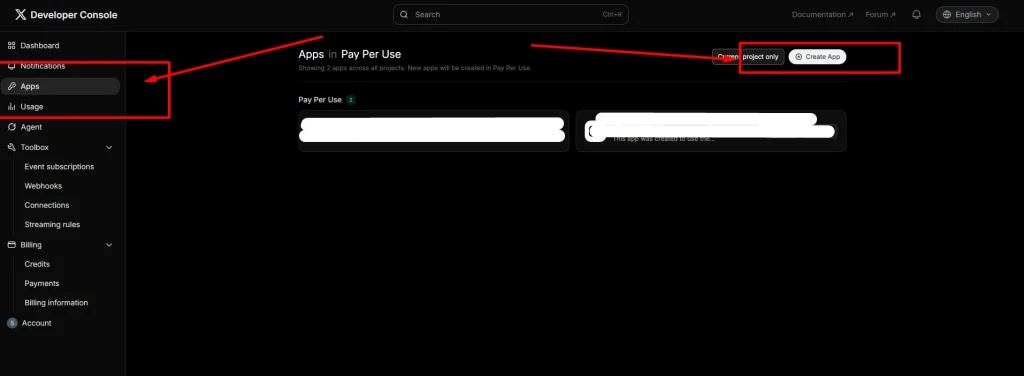
Enter the required application details and create the App.
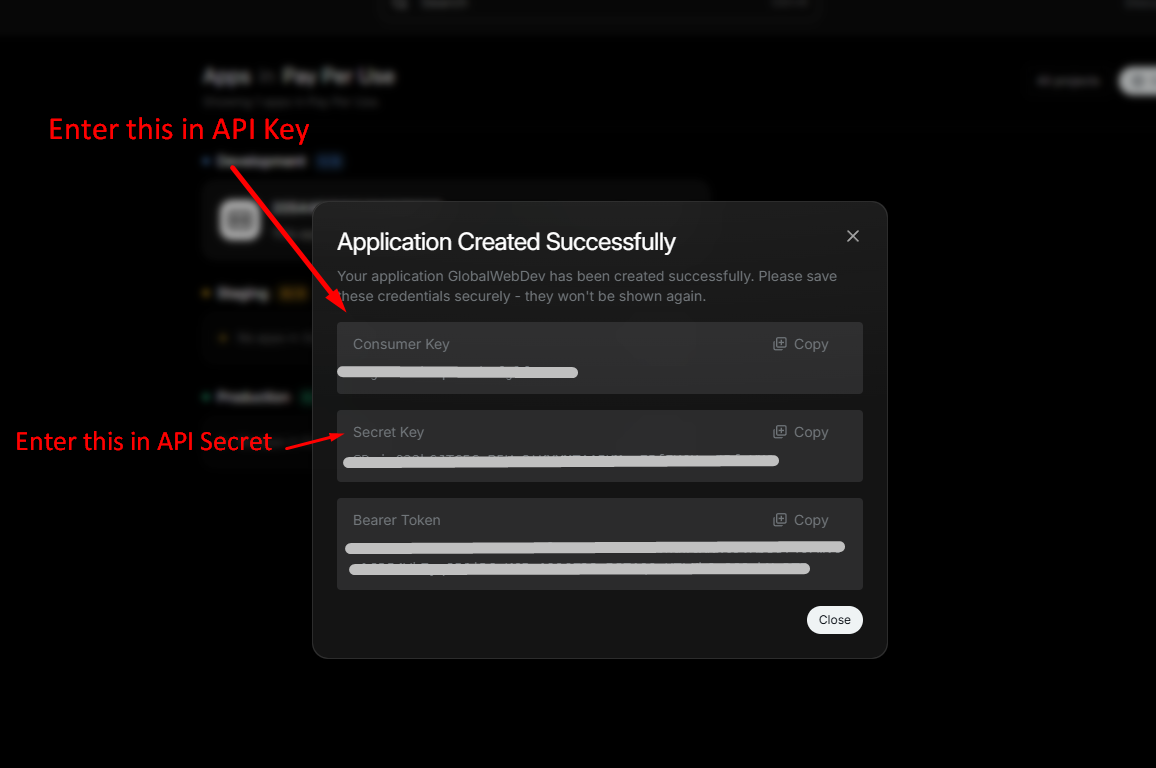
Once the App is created, X will provide your API Key and API Secret (also referred to as Consumer Key and Consumer Secret). These credentials identify your App and are required for OAuth 1.0a authentication.
Add API Key and API Secret to the Plugin
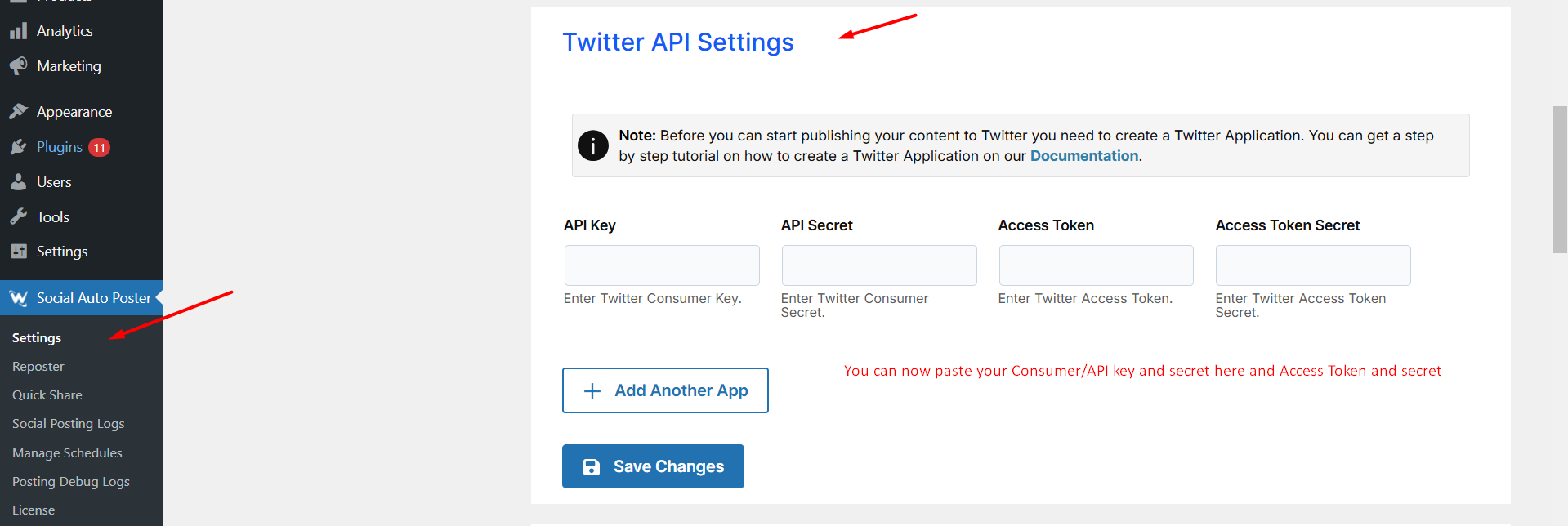
Copy the API Key and API Secret from your X App and enter them in the corresponding fields in the X App Settings section of the Social Auto Poster plugin.
- API Key: Enter your X API Key.
- API Secret: Enter your X API Secret.
Configure App Permissions
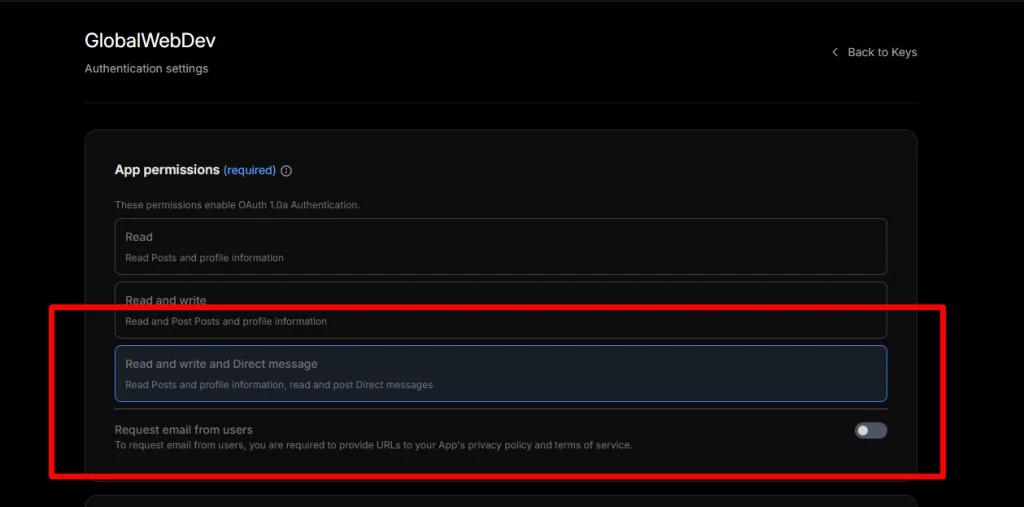
Open your X App settings and configure the App Permissions under the authentication settings.
For Social Auto Poster, select Read and Write and Direct message permissions. This permission level allows the App to perform write actions, such as publishing posts on behalf of the connected X account. X currently provides three OAuth 1.0a permission levels: Read only, Read and Write, and Read, Write, and DMs. Social Auto Poster requires Read and Write and DMs for posting.
Configure Callback URL and Website URL
Scroll down to the application information section.
Enter your website URL in the Callback URL and Website URL fields as required by the plugin configuration.
Make sure the URL entered in the Callback URL field matches the callback URL required by the plugin. Incorrect or mismatched callback settings can prevent the authentication process from completing successfully.
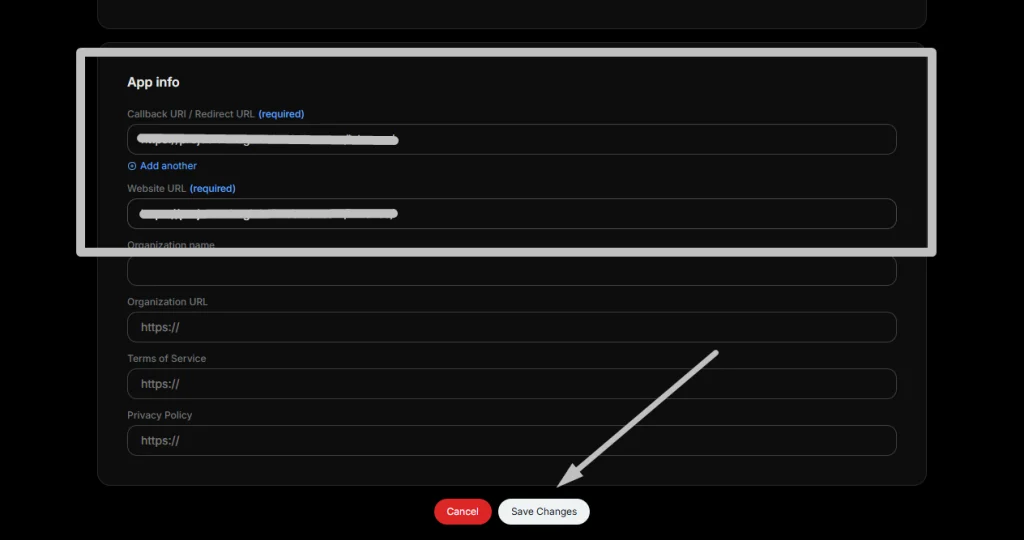
Save the changes to your App.
Generate Access Token and Access Token Secret
Go back to your X App Dashboard and open the Keys and Tokens section.
Here you can generate the credentials associated with your App. For Social Auto Poster, you need:
- API Key
- API Secret
- Access Token
- Access Token Secret
X identifies the Access Token and Access Token Secret as the credentials used to make requests on behalf of your X account through OAuth 1.0a.
Click Generate in the Access Token section to generate your Access Token and Access Token Secret.
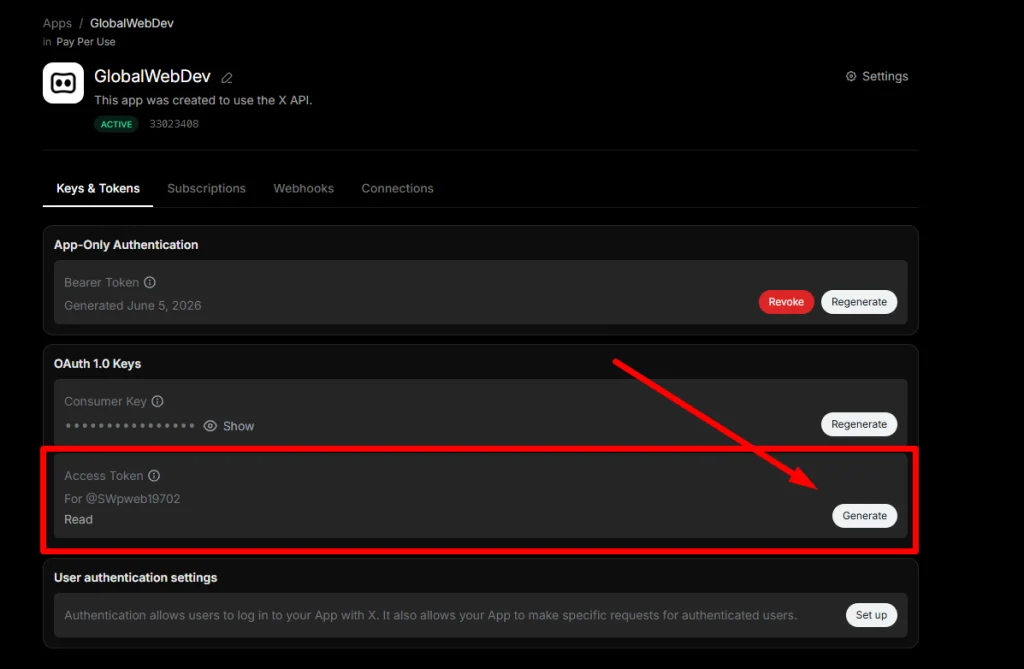
After changing the App permissions, make sure you generate or regenerate the Access Token so that the token reflects the updated permissions.
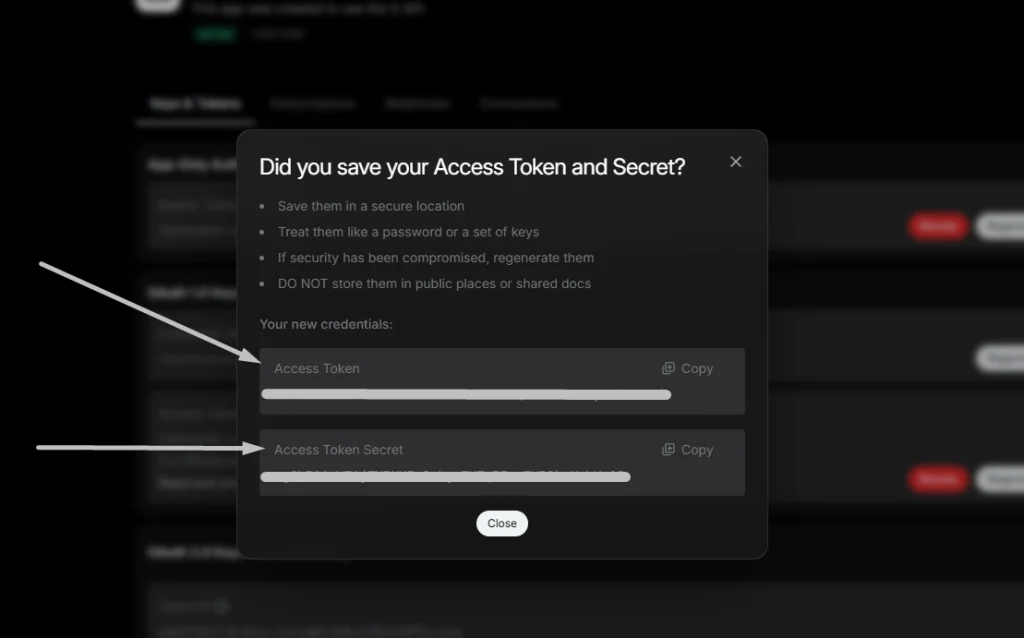
Add the Credentials to Social Auto Poster
Copy the Access Token and Access Token Secret and enter them in the corresponding fields in the X App Settings section of the Social Auto Poster plugin.
Once all four credentials have been entered, save the plugin settings.