WPWeb Social Network Integration Documentation
To create a YouTube application, go to the Google Cloud Console.
You need to be logged in to your YouTube account to be able to get YouTube Application Id and channel secret. So first, login to your YouTube account and then follow the link above to get to their developer page.
Create a Google Cloud Project
Sign in to the Google Cloud Console and create a new project.
Click New Project, enter a name for your project, select the appropriate organization or location if required, and click Create.
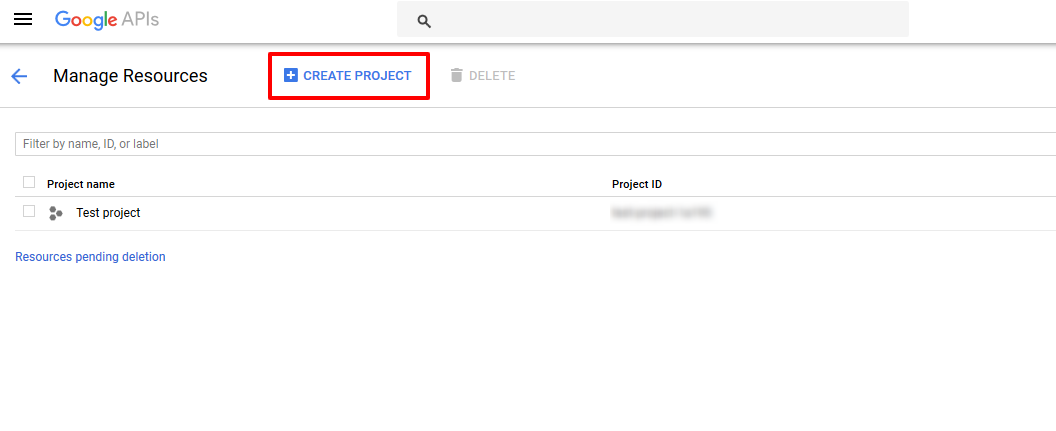
After clicking Create Project, the project creation screen will open. Enter the Project Name; the Project ID will be generated automatically. Once you have entered the required details, click Create to create the project. The page will look similar to the image shown below.
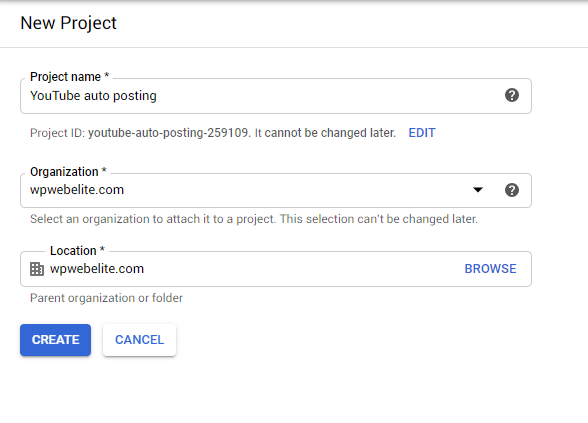
After the project is created, select it from the notification at the top of the Google Cloud Console.
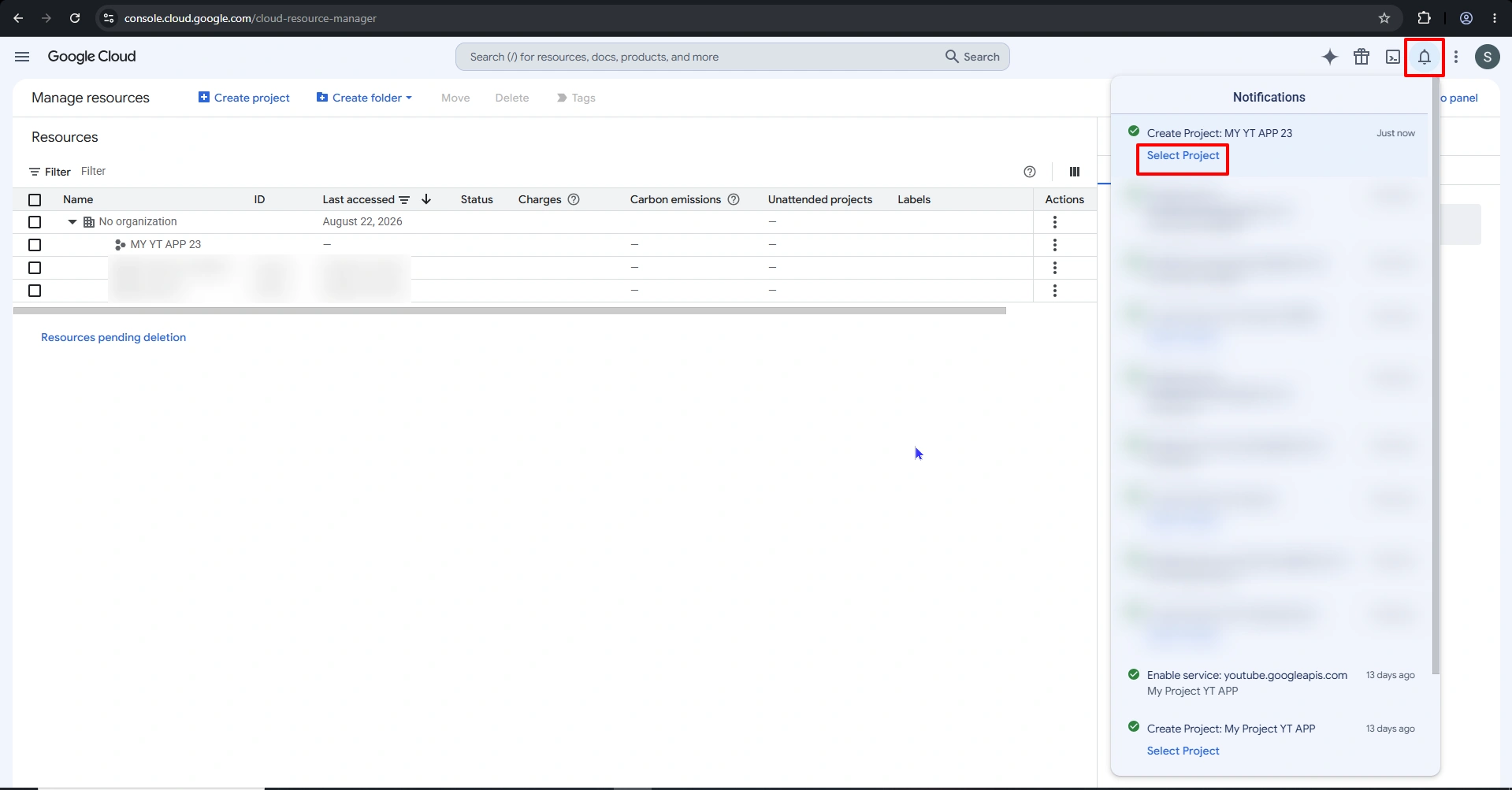
Enable YouTube Data API v3
From the Google Cloud Console, open APIs & Services → Library.
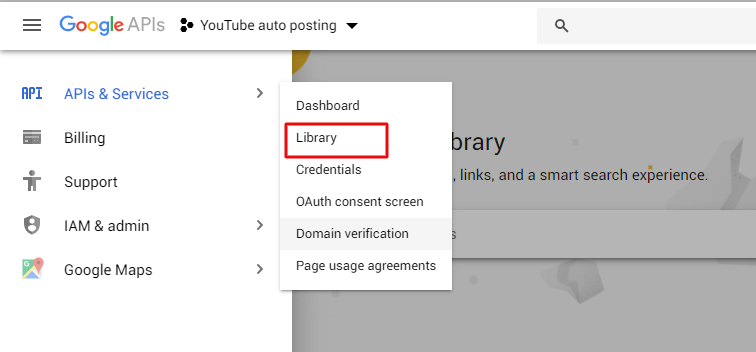
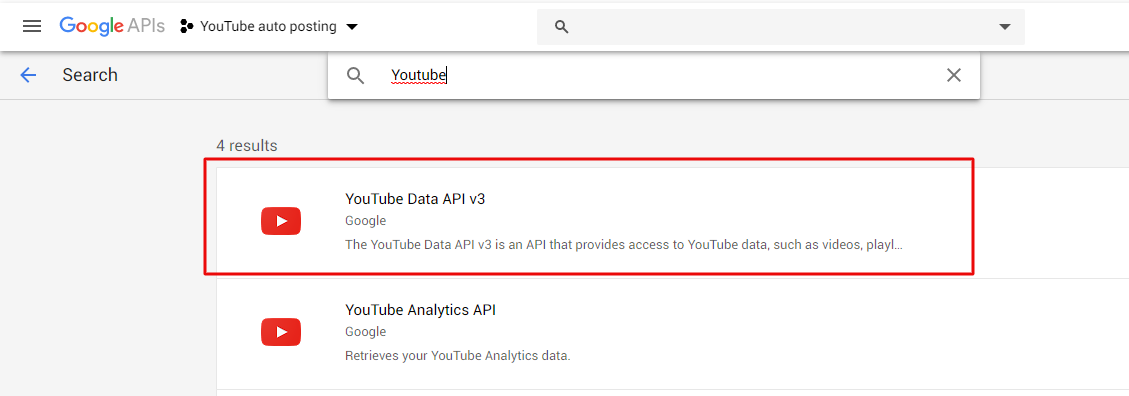
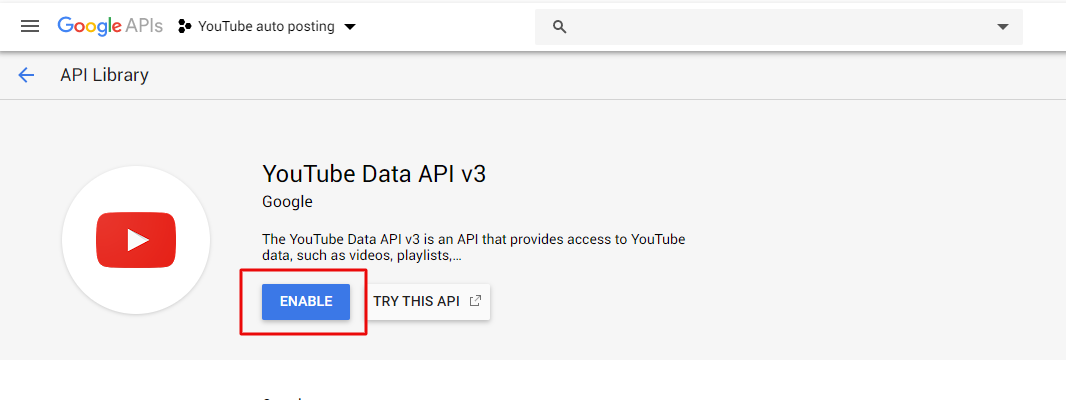
Search for YouTube Data API v3, open the API, and click Enable.
Create an API Key
Go to APIs & Services → Credentials and click Create Credentials → API Key.
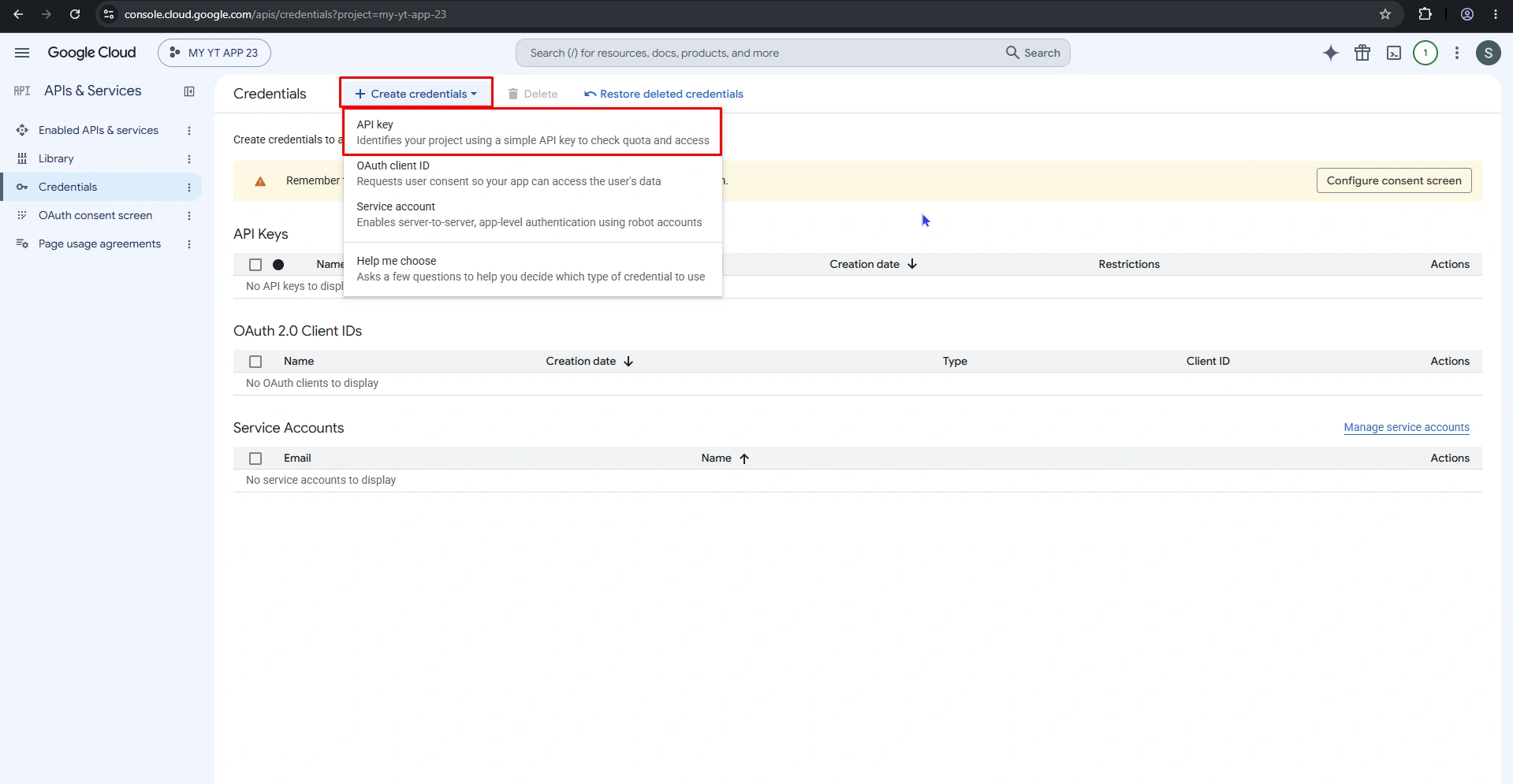
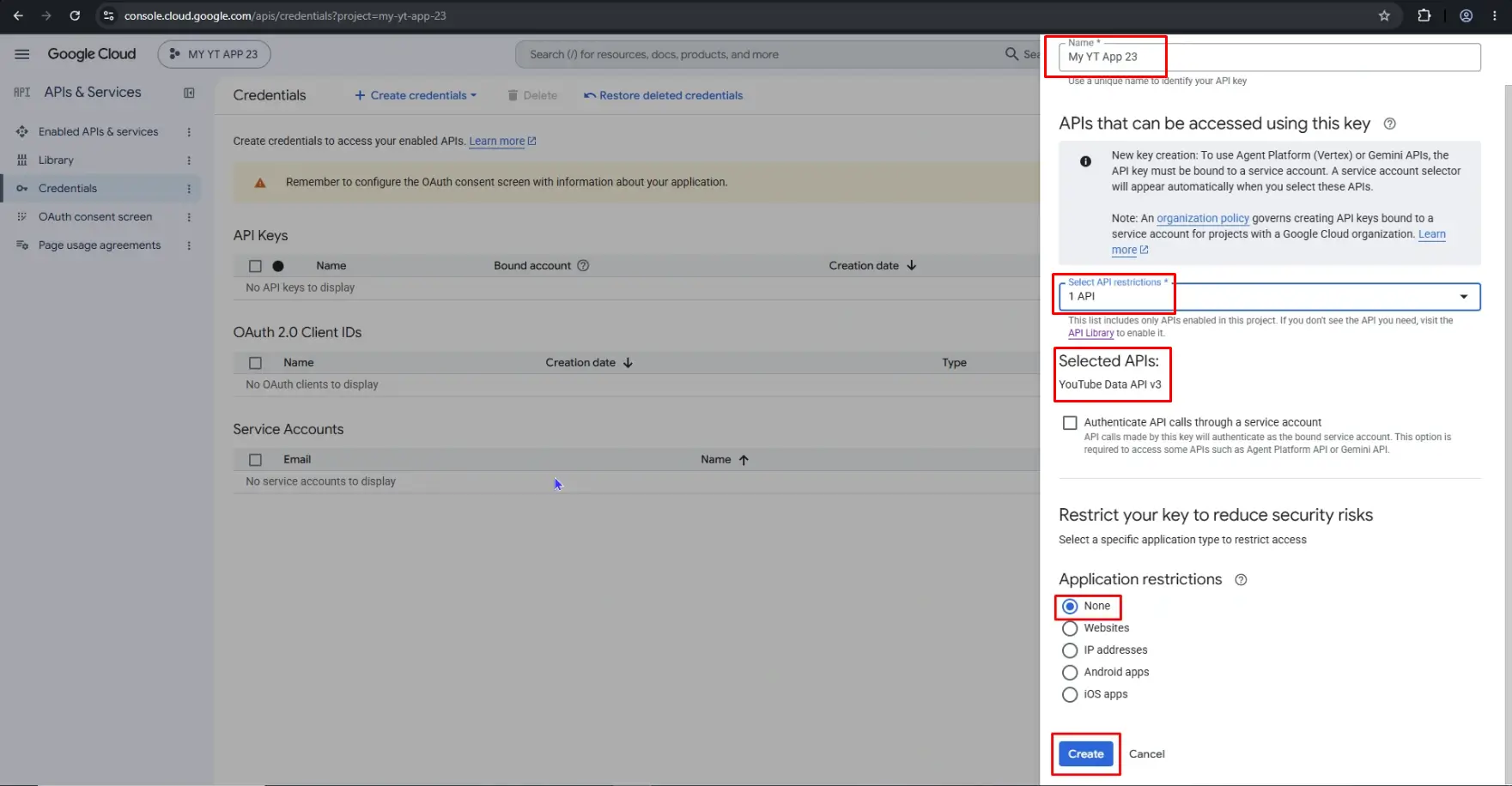
Google will generate an API key for your project.
To restrict the key, open the generated API key and configure the appropriate API restriction. Select YouTube Data API v3 as the API that the key can access, then save the changes.
Configure the OAuth Consent Screen
From APIs & Services → Credentials → Create Credentials → OAuth client ID, start configuring the OAuth consent screen.
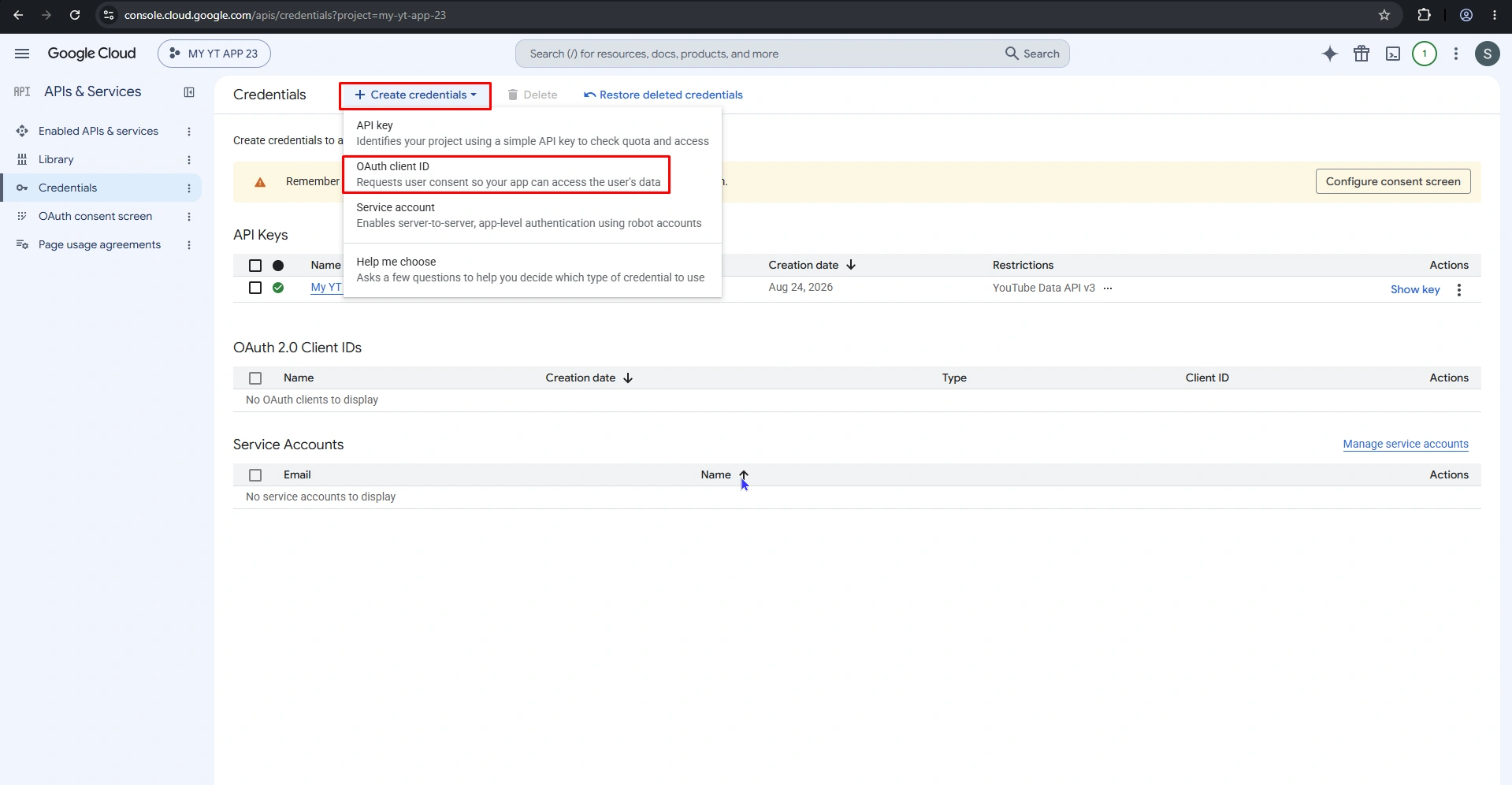
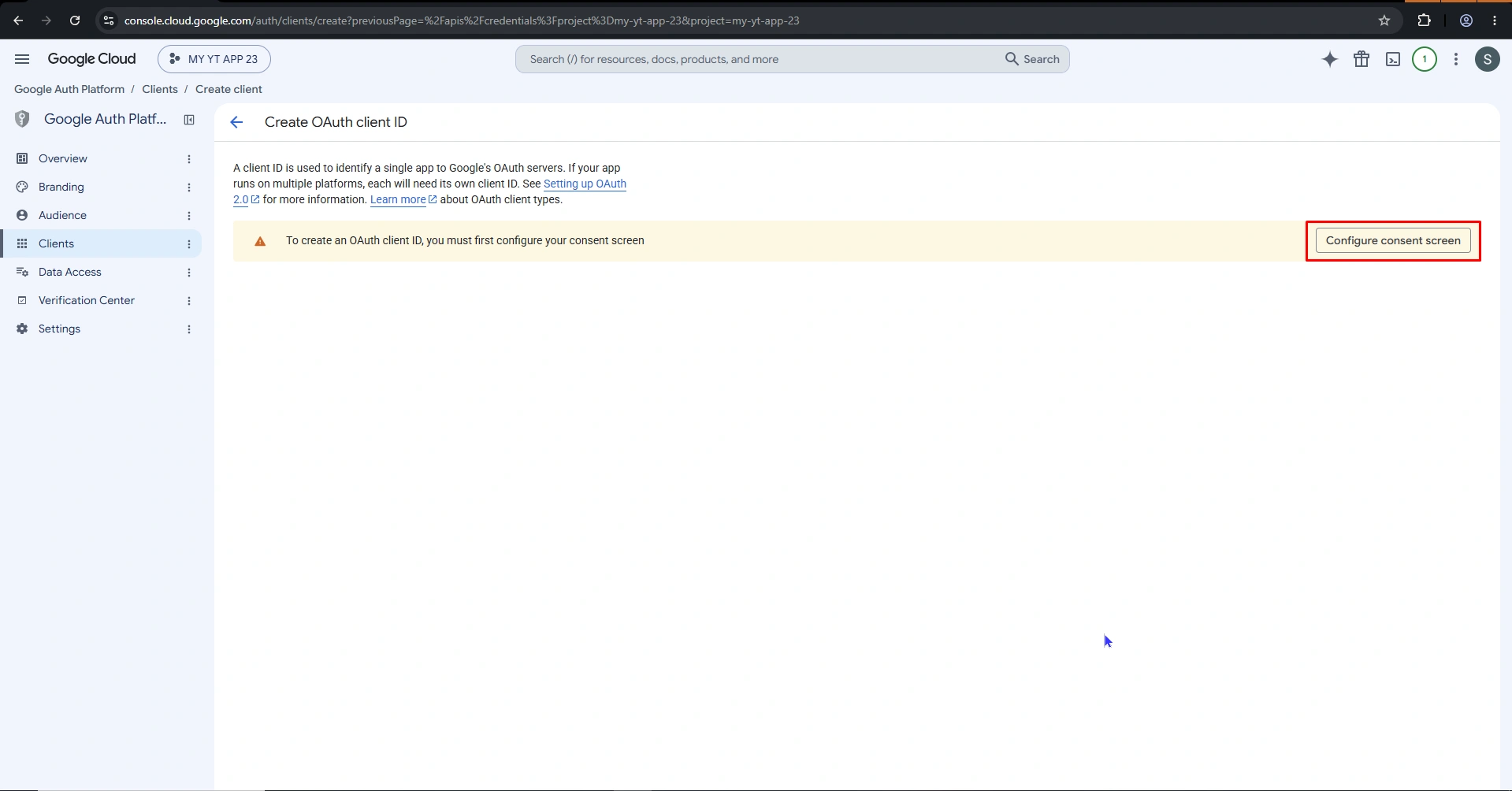
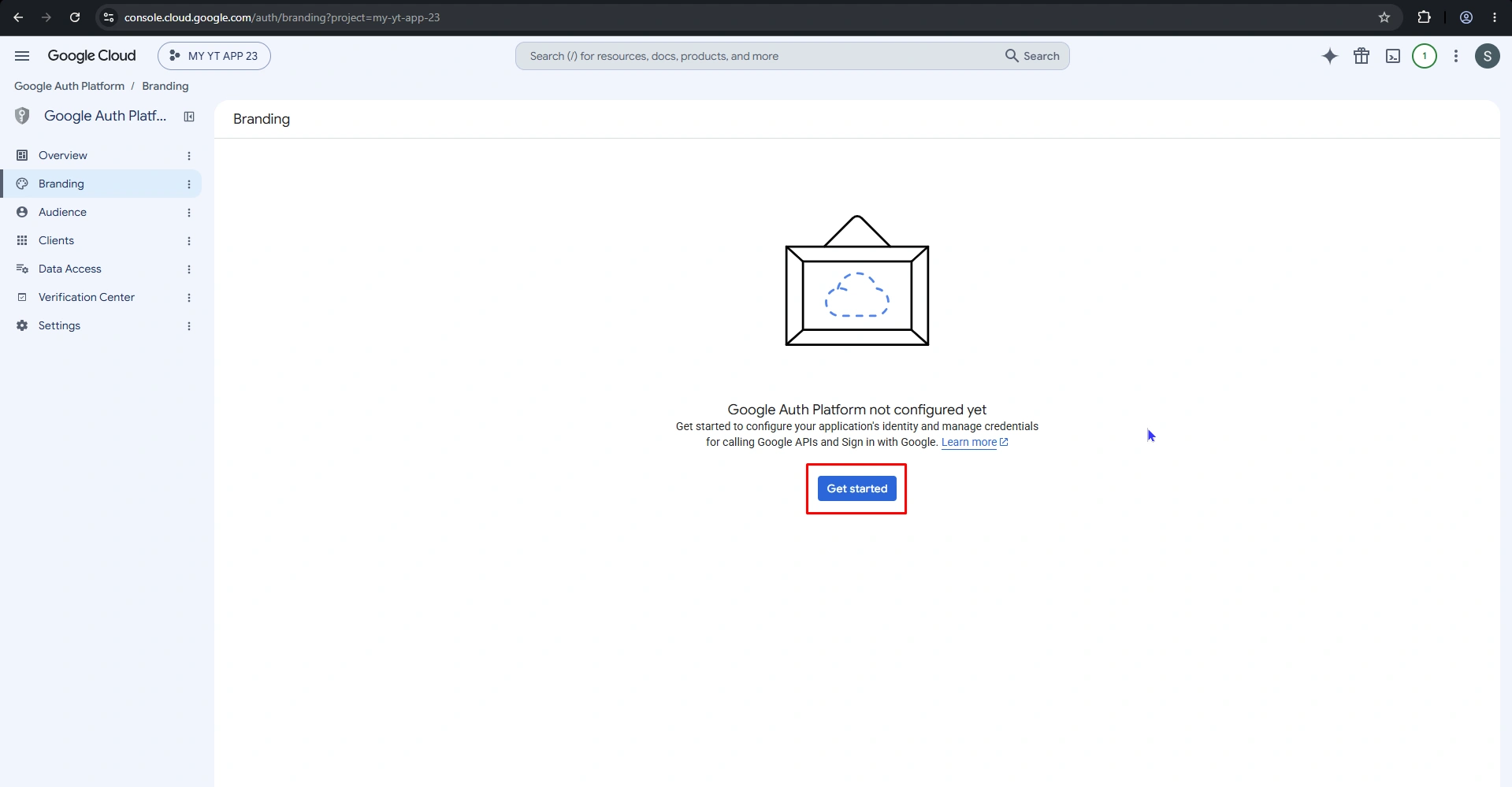
Enter the required App Information, including the application name and support email.
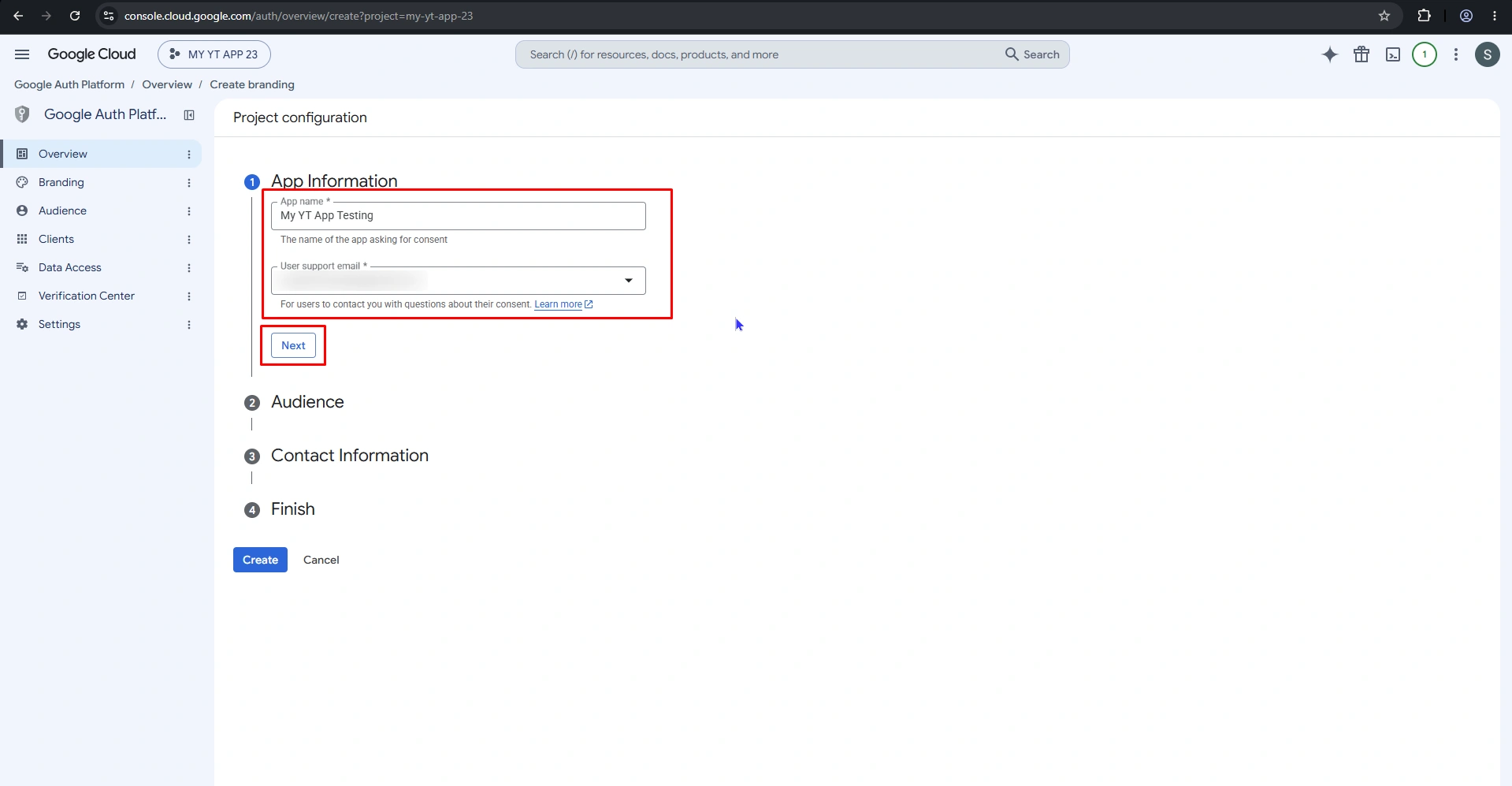
Configure the Audience according to your application requirements, then provide the required Contact Information.
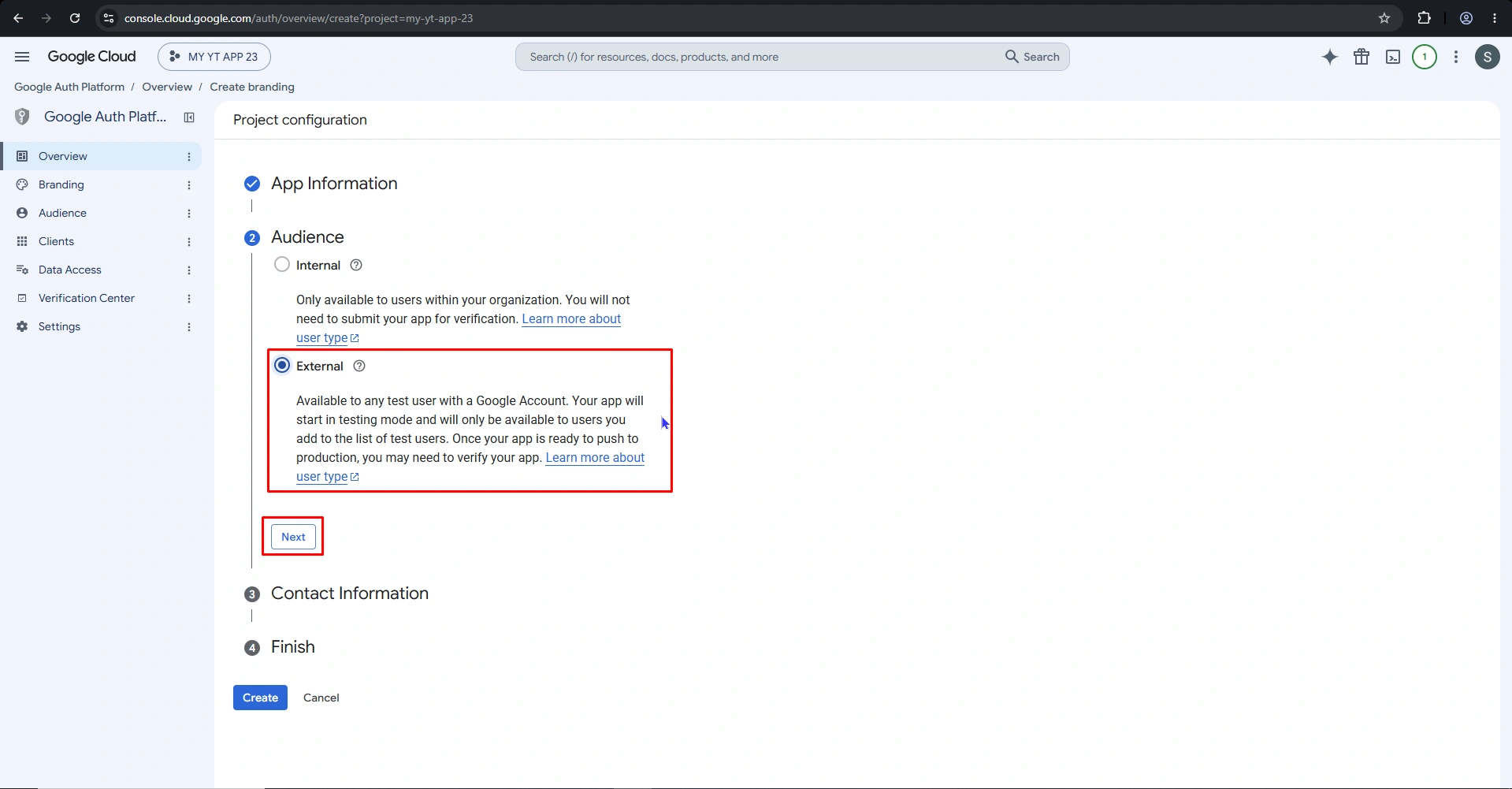
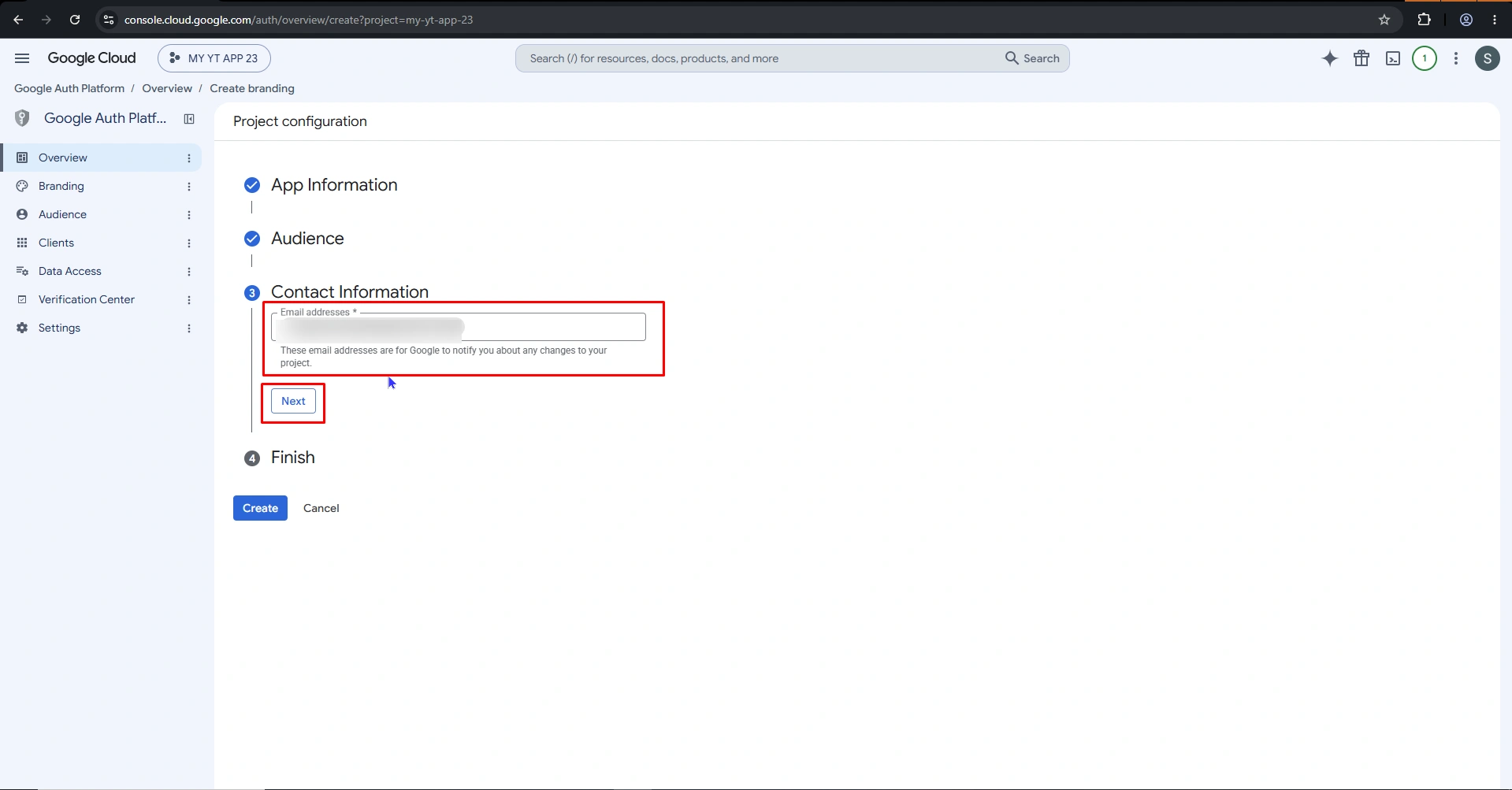
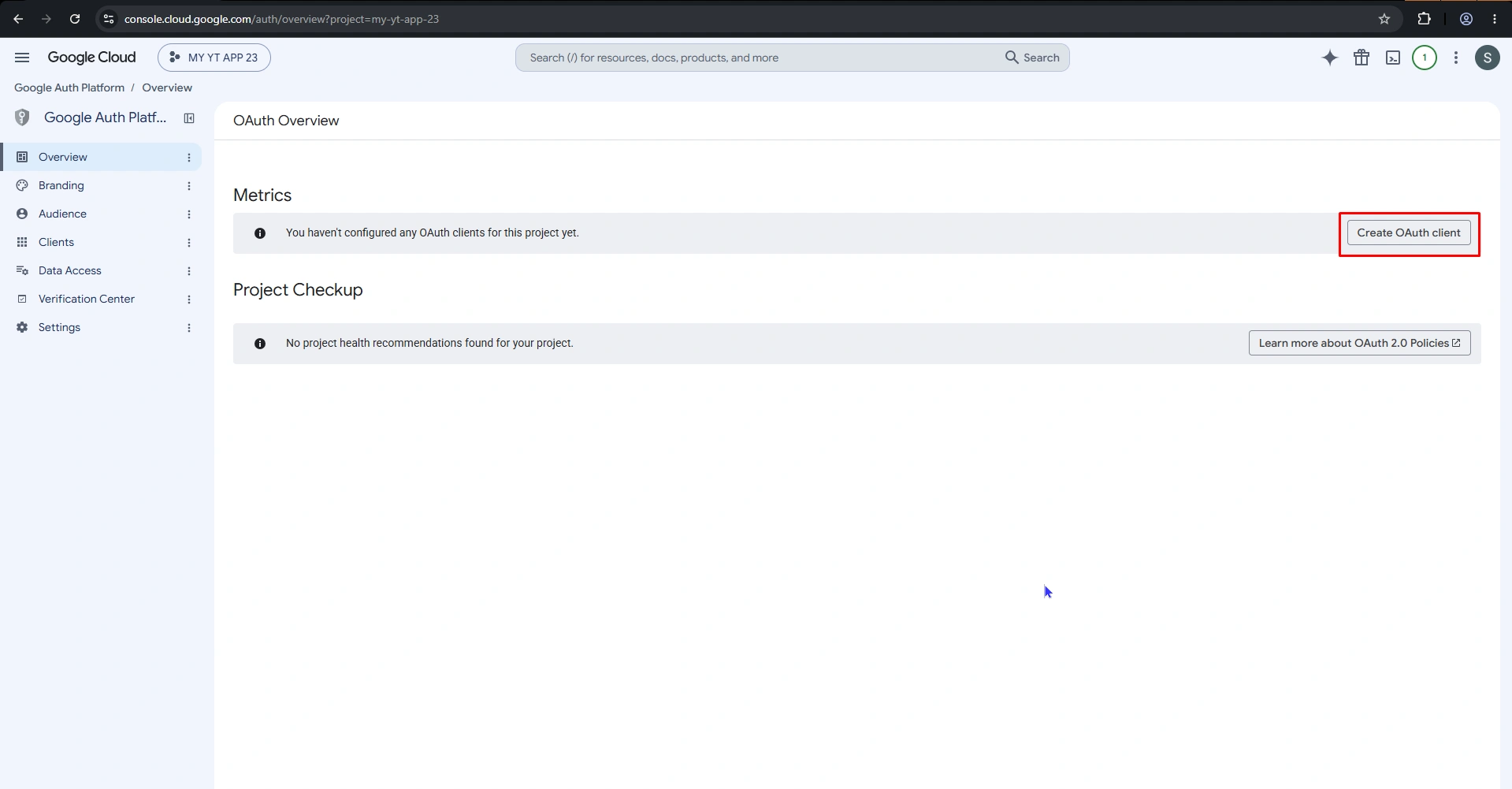
Complete the consent screen configuration and save it.
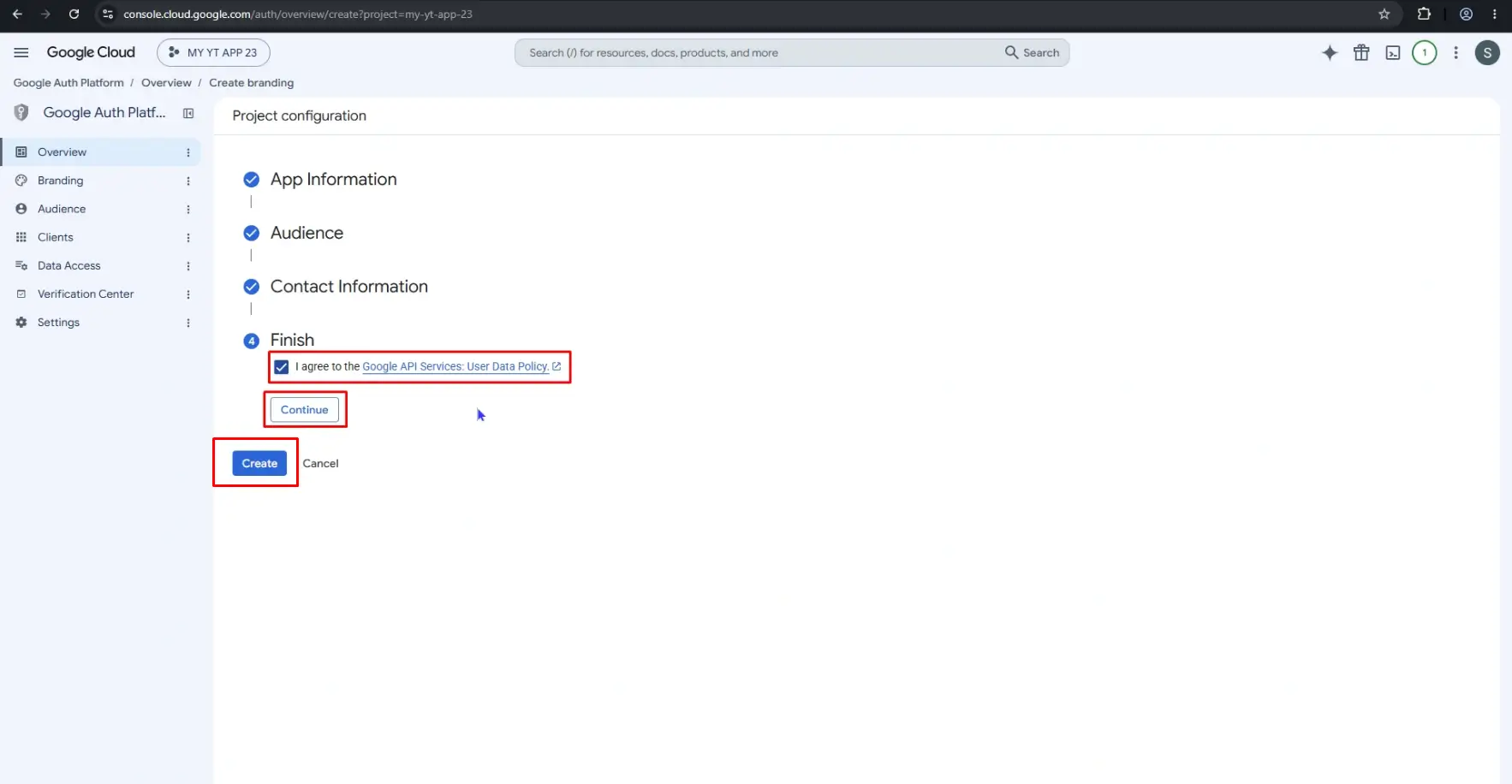
Create OAuth Client ID
Go to APIs & Services → Credentials and click Create Credentials → OAuth client ID.
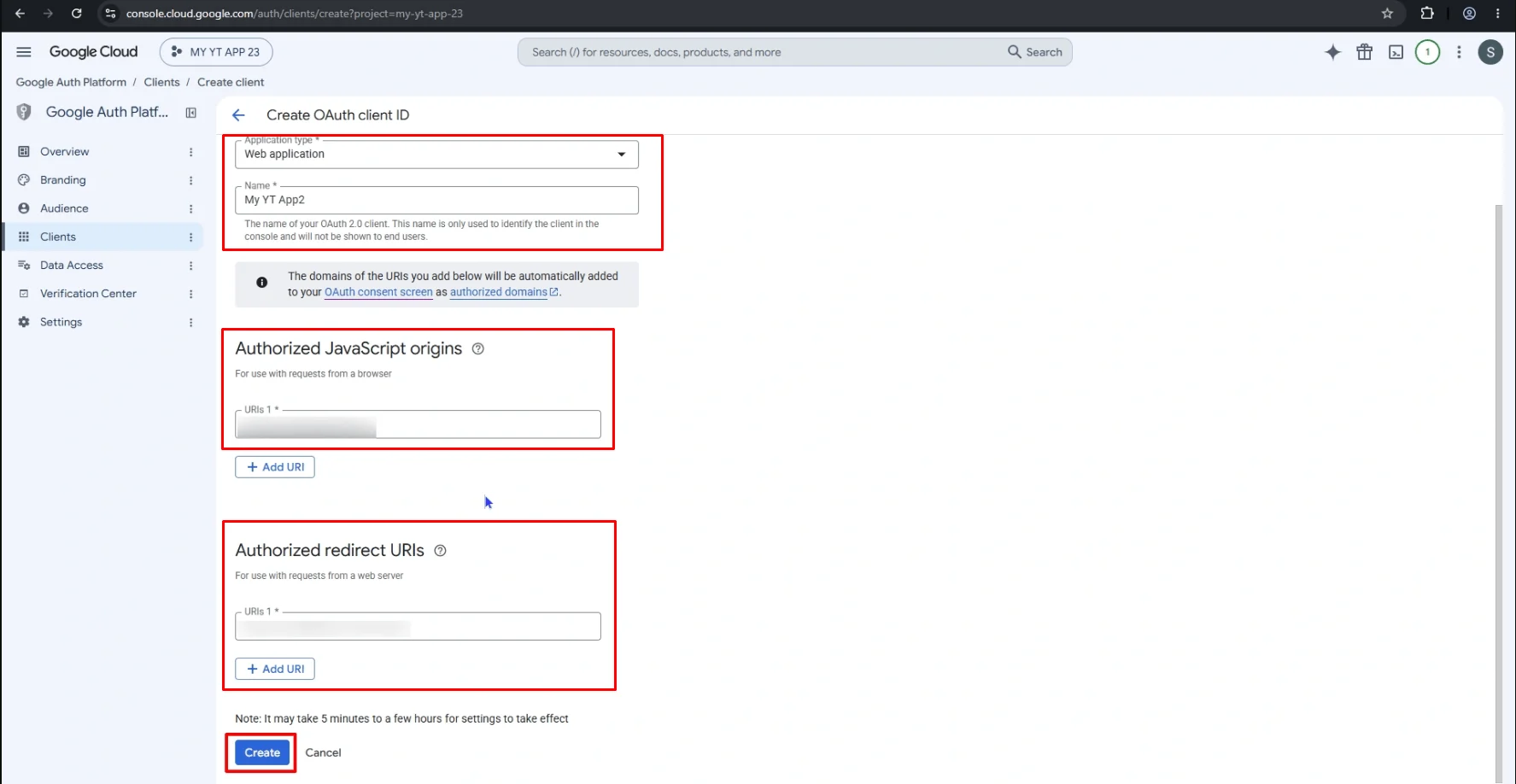
Select Web application as the application type.
Enter a name for the OAuth client.
Under Authorized JavaScript origins, click Add URI and enter your website URL.
Under Authorized redirect URIs, click Add URI and enter the YouTube Callback URL provided in the plugin settings.
Click Create to create the OAuth client.
Get the Client ID and Client Secret
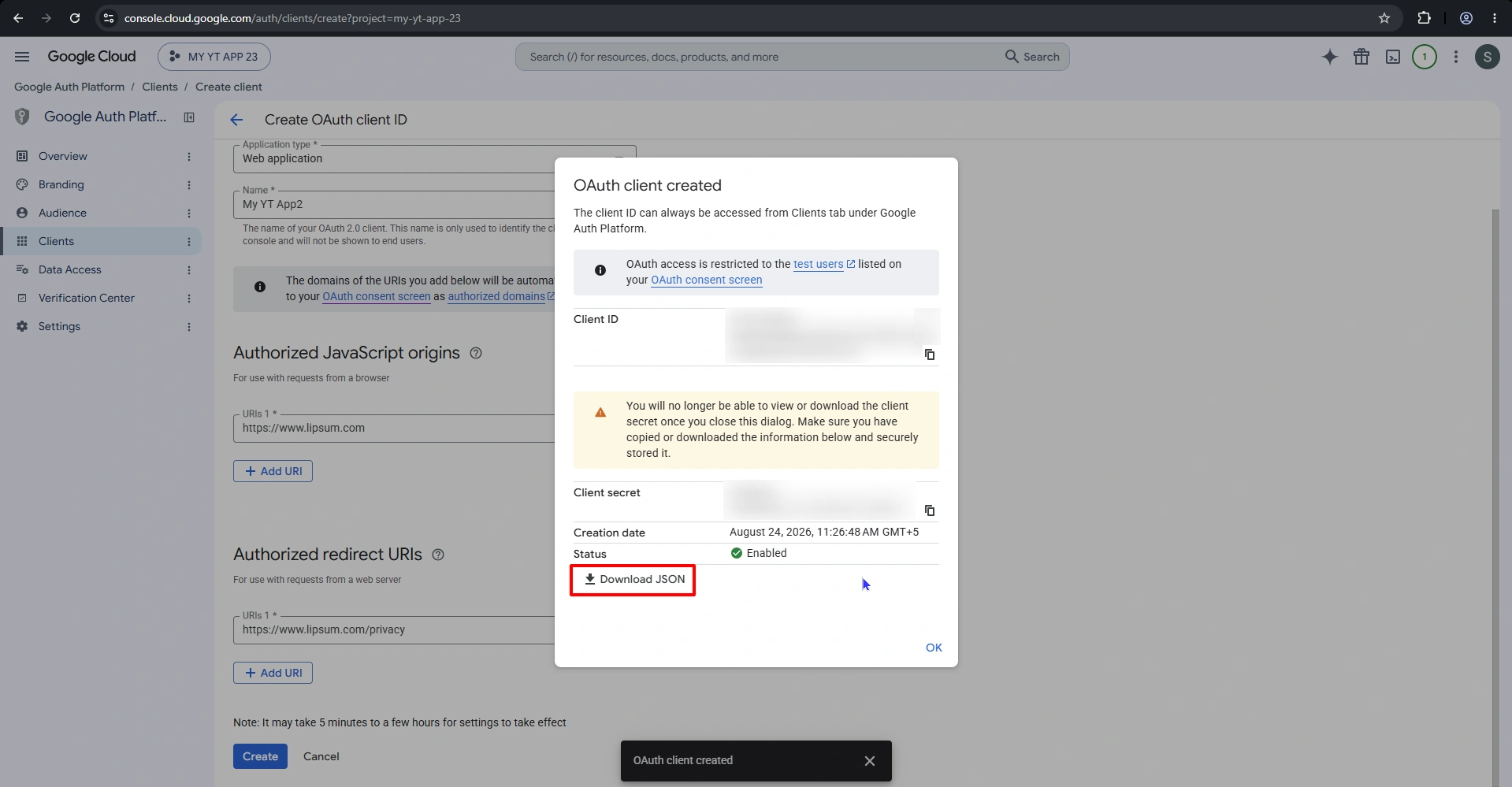
Once the OAuth client is created, Google will display the Client ID and Client Secret.
Copy both credentials and keep them secure.
Add YouTube Credentials to the Plugin
Copy the Client ID, Client Secret, and API Key from your Google Cloud project and enter them in the corresponding fields under the YouTube App Settings section of the plugin settings page.
After entering the credentials, click Save Changes.


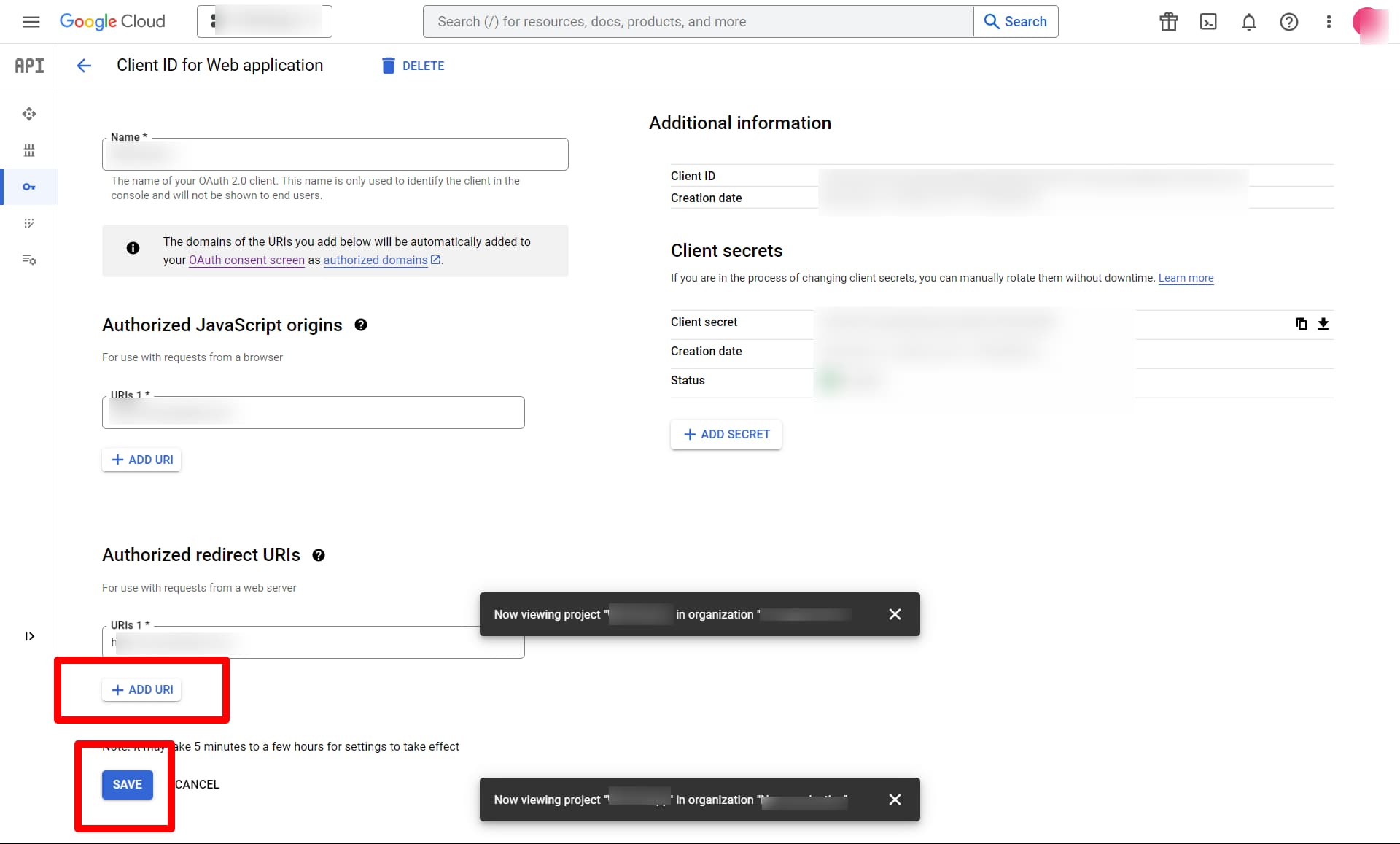
Go to Developer Dashboard → Credentials from the side menu. From the dropdown next to the Google Cloud logo, select your project and click the Project Name.
A screen similar to the image shown below will appear. Enter the Redirect URL provided in the plugin settings and save the changes.
Then return to the plugin settings and click Grant Extended Permission.
